Use your own NFC stickers.
You don't have to buy stickers from Metyuu. Ordinary NFC stickers, from any shop, work too once you've written one address onto them. This page shows which stickers to buy and how to write them, in about a minute each.
Last updated:
Short answer
Yes, you can use your own. Buy NTAG213, NTAG215 or NTAG216 NFC stickers, write https://metyuu.com/t/diy/{UUID} onto each one with the free NFC Tools app on an Android phone, then tap the sticker and claim it: from then on it opens your Metyuu card. Ordinary stickers don't work on metal.
Which stickers to buy.
NTAG213, NTAG215 or NTAG216, nothing else. The type is usually in the listing's title or details. Other types, such as "MIFARE Classic", can't be read by iPhones, so half the people you meet couldn't open your card. Round stickers 25 to 30 mm across fit well on a phone case.
Not for metal. Ordinary stickers stop working on metal phones and metal cases. For those you need on-metal stickers, which are a different product.
The address to write.
https://metyuu.com/t/diy/{UUID}Type it exactly as shown, including {UUID}. NFC Tools replaces {UUID} with a new random code on every sticker it writes, so each sticker is its own. Don't write the same address, with the same code, on several stickers: the first person to claim one would own them all.
Step by step.
- Buy the right stickersNTAG213, NTAG215 or NTAG216 stickers. Round ones 25 to 30 mm across are ideal. Avoid "MIFARE Classic" and other types: iPhones can't read them.
- Install NFC Tools on an Android phoneThe free NFC Tools app, from Google Play.
- Write the addressIn NFC Tools choose Write, then Add a record, then URL / URI, and type https://metyuu.com/t/diy/{UUID} exactly, including {UUID}. Then write it to the sticker by holding it against the back of the phone.
- Test itTap the sticker with any phone. It should open a page saying "This sticker isn't linked to anyone yet."
- Claim itType your email and press Continue, then open the link we email you (or press "Make it mine" if you're already signed in). From then on the sticker opens your Metyuu card.
Which phone to write with.
We've checked this with the free NFC Tools app on Android. NFC Tools for Windows doesn't fill in {UUID}, so don't use it for this. NFC Tools' maker lists {UUID} among the app's variables but doesn't say whether the iPhone app fills it in, and we haven't checked it. If you only have an iPhone, write one sticker and tap it: if the page says the sticker isn't linked to anyone yet, it worked; if it says we couldn't find that sticker, write them from an Android phone instead. Any phone, iPhone included, can then tap them.
On a Windows laptop with a USB reader, use NFC Writer instead: see Writing lots of stickers, below.
Locking: optional, and permanent.
NFC Tools can lock a sticker so nobody can change it. Locking can never be undone. An unlocked sticker can be rewritten by anyone with the same app, which is rare but possible. If you lock, do it only after the sticker opens your card properly.
Writing lots of stickers: NFC Writer for Windows.
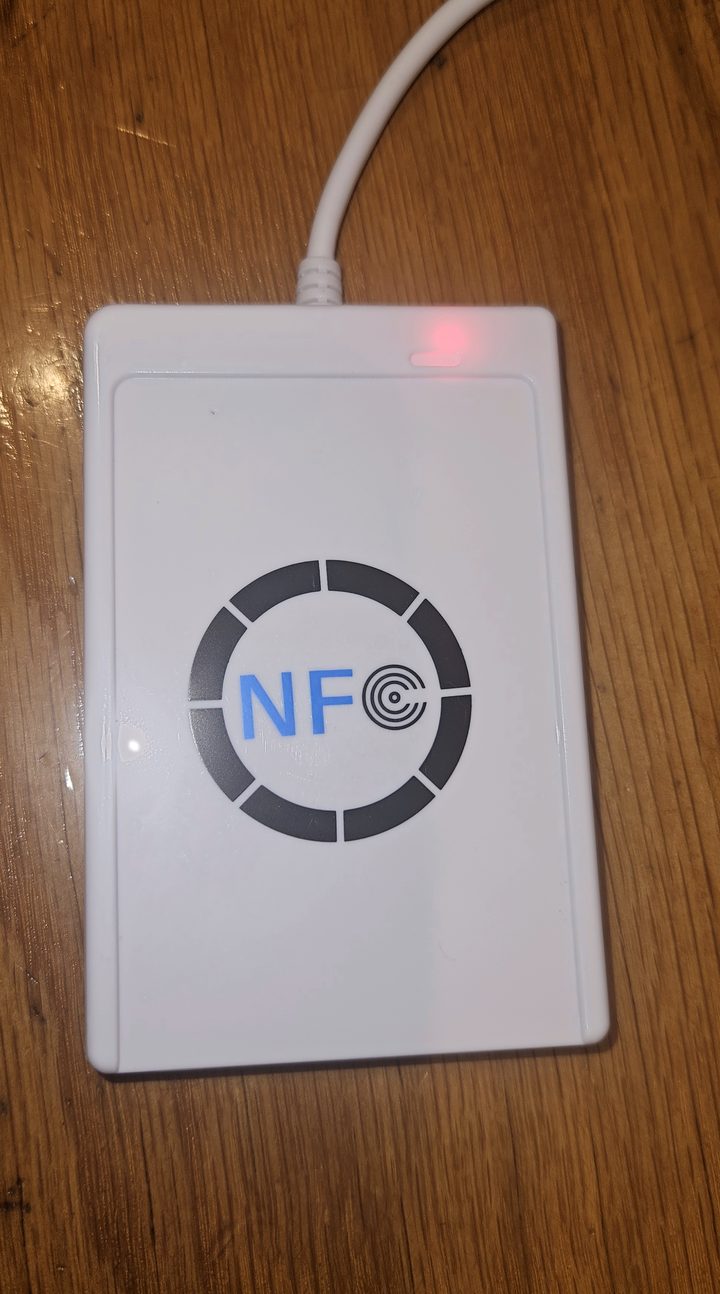
For more than a handful, a USB NFC reader on a Windows laptop is quicker than a phone: lay a sticker on the reader, it's written and checked in under a second, lift it off and lay the next. NFC Writer is our free program for it. It writes any address you give it, so it works for other NFC projects too.
The reader: an ACR122U USB NFC reader, sold under that name by many shops. Windows recognises it by itself, so there's nothing to install.
Download NFC Writer for Windows (for Windows 10 or 11).
- Plug in the reader, then open NFC Writer. Windows may say "Windows protected your PC", because the program isn't signed yet: choose More info, then Run anyway.
- Type the address from "The address to write", above, exactly as shown, and press Start.
- Lay a sticker on the reader. The panel turns green when it's written and checked. Lift it off and lay the next.
- Tap the first one with your phone: it should open a page saying "This sticker isn't linked to anyone yet."
Modes. Auto, where it always starts: a blank sticker is written, and one that already holds an address is only shown, then rewritten if you lift it off and lay it on again. Overwrite rewrites every sticker. Read only shows what a sticker holds. Blank empties every sticker. Two more are for events, with a USB QR code scanner plugged in as well: "Scan a QR code, write it to NFC" takes the Metyuu address from a pass's QR code and writes it to the next blank sticker laid on the reader, so the pass's NFC sticker and its QR code open the same card; "Scan a QR code, overwrite NFC" does the same to a sticker that already holds an address. NFC Writer never locks a sticker, and lists every sticker it writes in Documents\NFC Writer\nfc-writer-log.csv.
Good to know.
A sticker works only while your Metyuu subscription is live, the same as a Metyuu sticker. Once claimed, it shows in My Stickers & Cards: the account owner can move it to someone else or switch it off, and taps are counted as sticker taps.
Rather not write your own? Metyuu sells clear NFC stickers in packs.